Start here
Create your account
Sign up with your email, log in, and add your callsign.
Fieldbook runs in your browser. You do not have to install it from an app store. To start, open app.fieldbook.cc on your phone, tablet or computer.
Sign up
You need only an email address. Fieldbook does not use passwords.
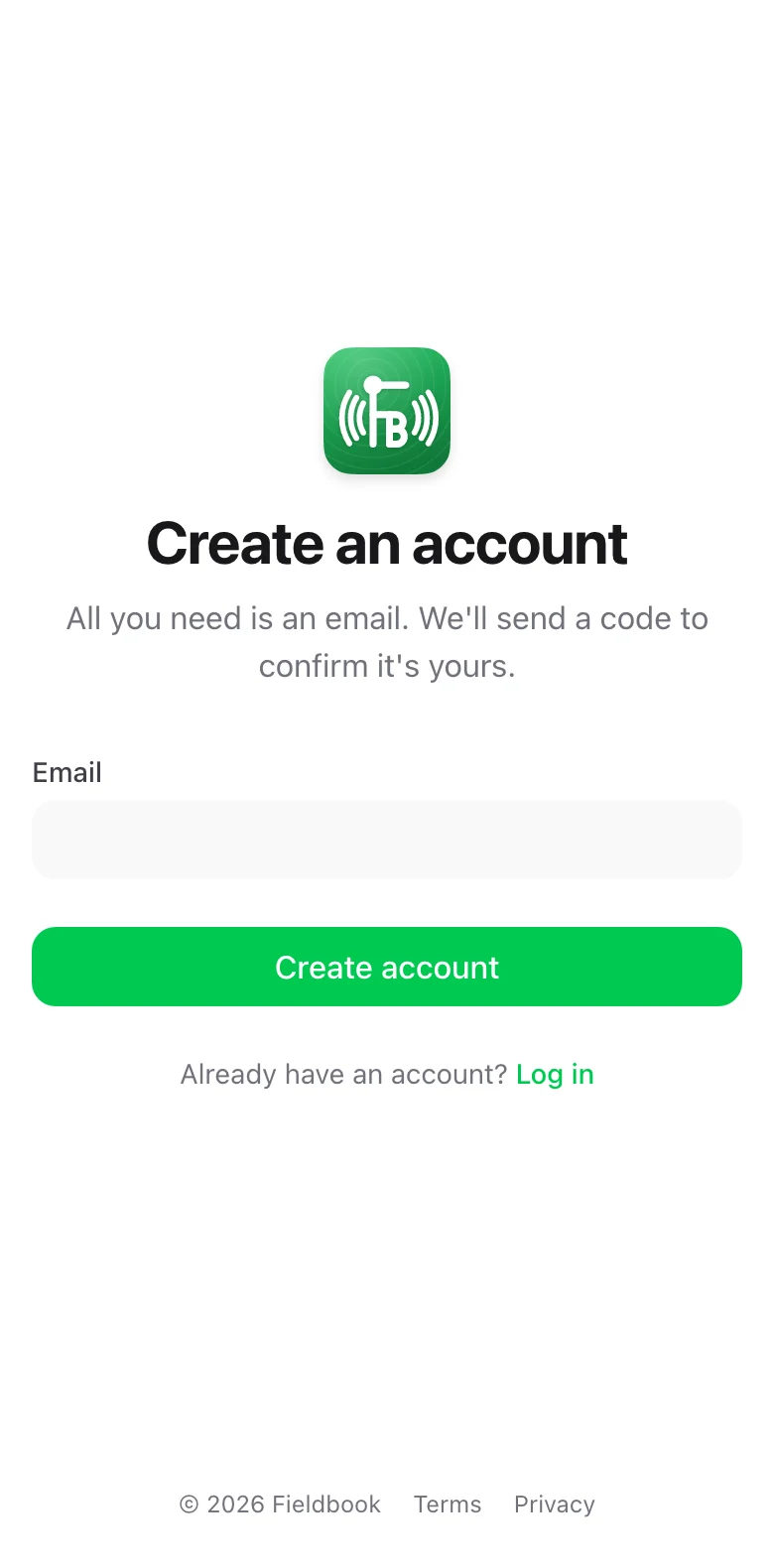
- Open app.fieldbook.cc.
- Select Create an account.
- Type your email address.
- Select Create account.
- Find the email from Fieldbook. It contains a 6-digit code.
- Type the code, then select Confirm.
Fieldbook signs you in and starts a short setup. Refer to Set up Fieldbook.
Log in
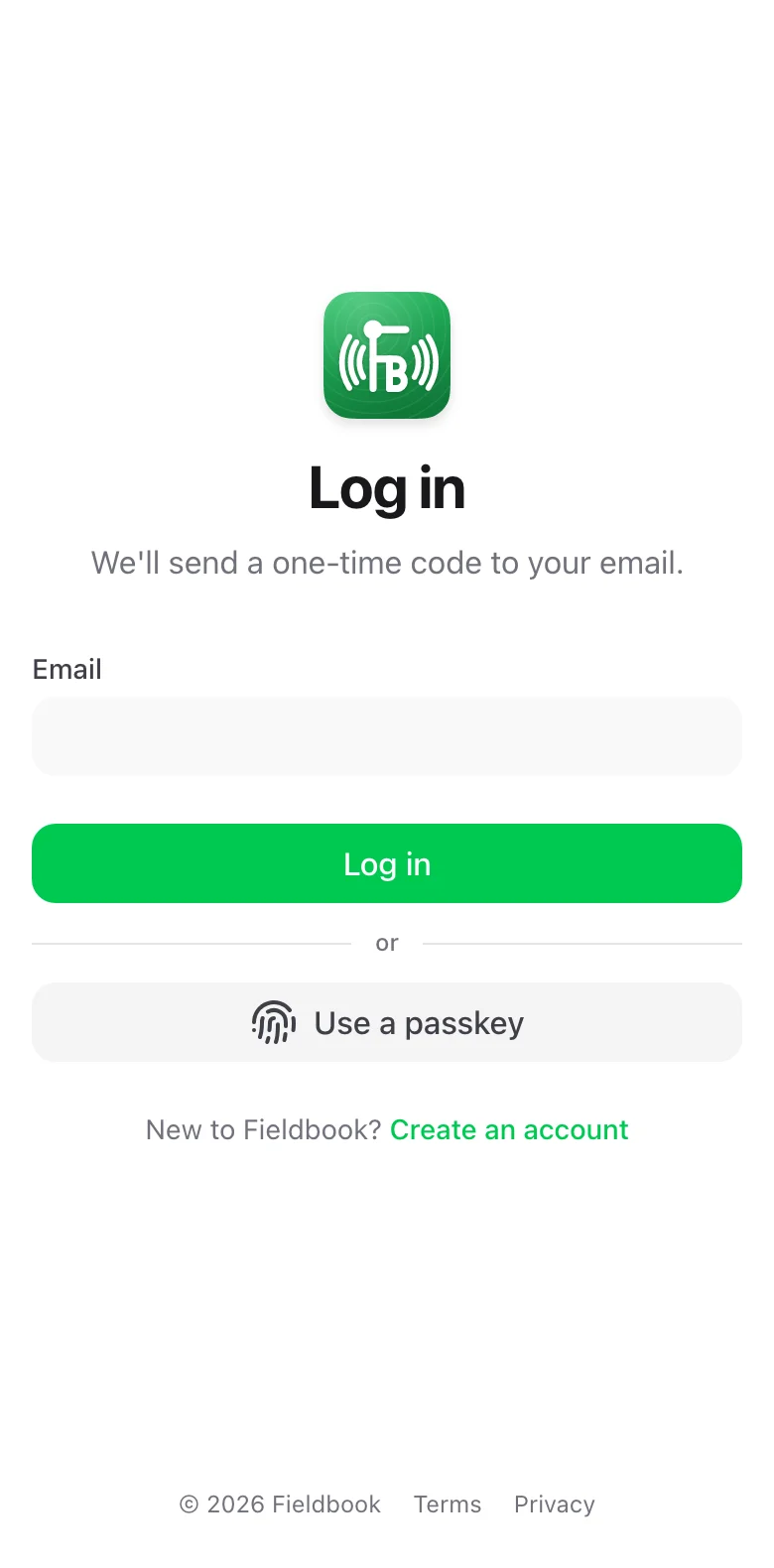
- Type your email address.
- Select Log in.
- Type the 8-digit code from the email, then select Verify.
You can also select Use a passkey. A passkey lets you log in with your fingerprint, face or device PIN. To add a passkey, go to Settings > Security.
Set up Fieldbook
When you sign in to a new account, Fieldbook helps you set up your first logbook. First, it asks if you have logged radio contacts before.
If you are new to amateur radio
Select I'm new to amateur radio. Fieldbook asks one question on each screen and explains each one.
- Type your callsign and your name, then select Continue. If you do not have a callsign yet, select I don't have one yet.
- Select how to start:
- Start a new logbook: begin with an empty log.
- Import an existing log: bring your contacts from another logger with an ADIF file.
- Select where you will operate from:
- From home or anywhere: a general logbook for everyday logging.
- From a park (POTA): a logbook for one Parks on the Air activation.
- For POTA, select the park. Fieldbook names the logbook after the park and the date. For a general logbook, type a name.
- Select Continue, or Continue to import for an import.
- For a new logbook, type your grid square and your power. Both are optional.
- Select Create logbook.
Fieldbook also turns on Show guidance. The log form then explains each field and shows you how to log your first contact. Refer to Guidance.
If you have logged contacts before
Select I've logged contacts before. All the questions are on one screen.
- Type your callsign and your name.
- Select General or POTA. For POTA, select the park.
- Type a name for the logbook, or keep the name that Fieldbook gives.
- Select Start logging. To import a log from another app, select Import a log instead.
After setup
Fieldbook tells you that your logbook is ready. Select Start logging to open your new logbook. If you selected an import, select Import your log to open the import screen. Refer to Import ADIF.
Add your callsign
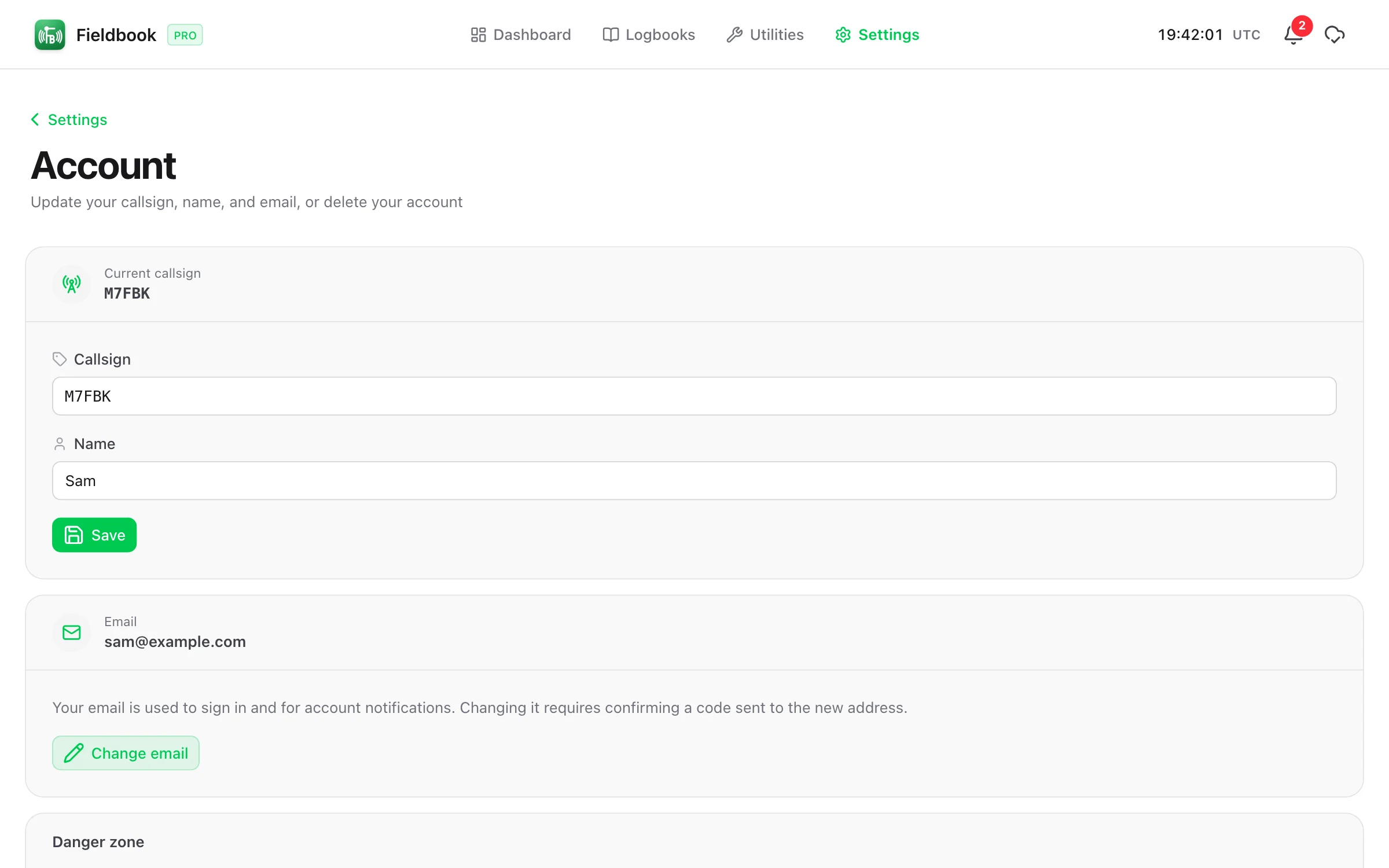
Fieldbook adds your callsign to each contact that you log. It also uses your callsign for the name of your first logbook. If you did not add your callsign during setup, add it in Settings.
- Go to Settings > Account.
- Type your callsign and your name.
- Select Save.