
Logging
Bulk edit
Change the station details of many contacts at the same time, or move them to another logbook.
Use bulk edit to correct the same mistake in many contacts. For example, you logged a full evening with the wrong power or the wrong callsign.
Edit many contacts
- Open the logbook.
- Open the logbook menu and select Bulk edit.
- In Fields to update, select each field to change and set its new value.
- In Select contacts, select the contacts to change. Use Search contacts to find them, or select all of them with the box at the top.
- Select Apply to (number) contacts.
A progress bar shows while Fieldbook updates the contacts. To stop, select Stop.
Fieldbook
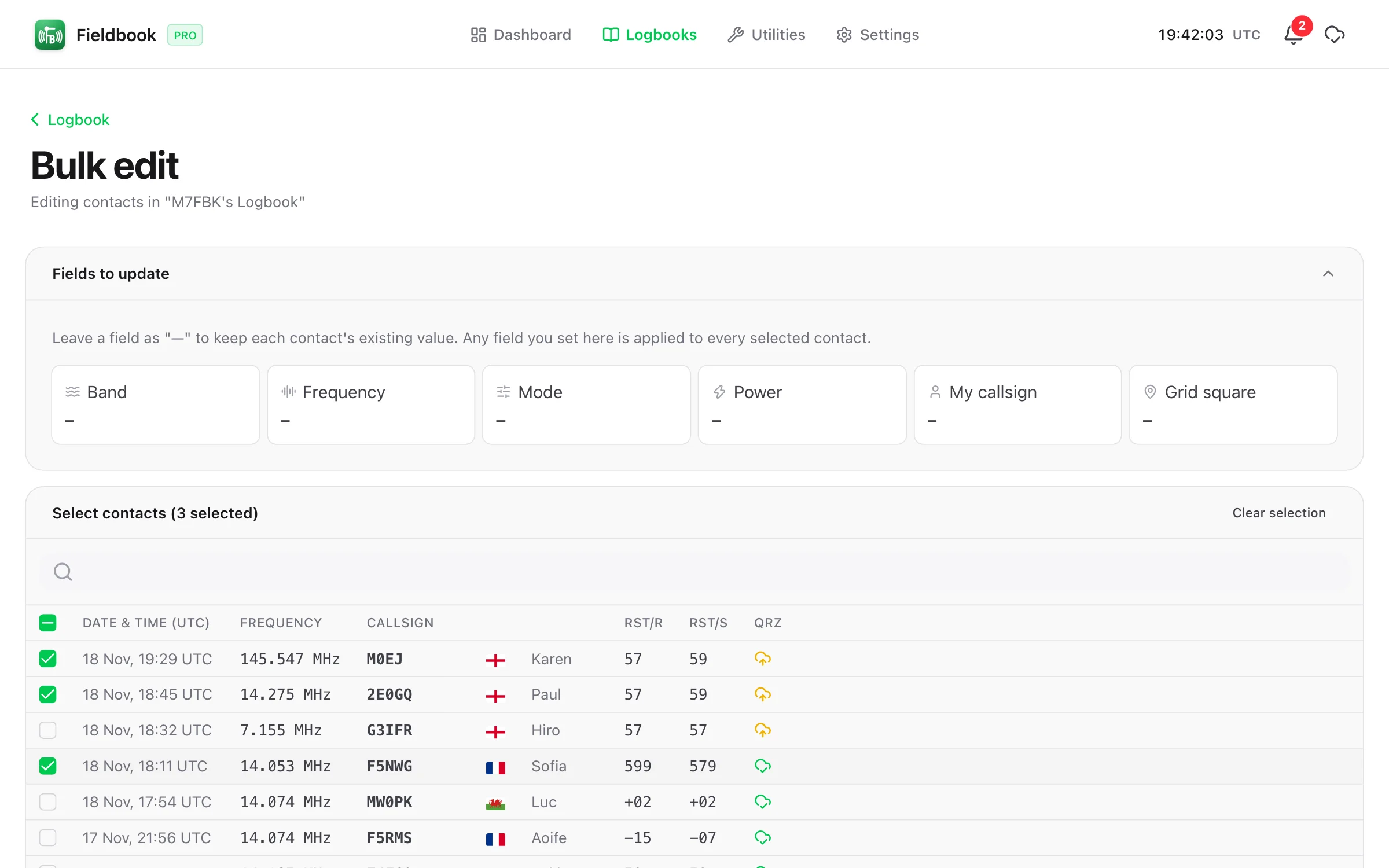
Fields that you can change
- Band
- Frequency
- Mode and submode
- Power
- My callsign
- Grid square
- My park (in a POTA logbook)
A field that shows "—" does not change. Each contact keeps its own value for that field.
Move contacts to another logbook
- Open the logbook.
- Open the logbook menu and select Bulk edit.
- In Select contacts, select the contacts to move.
- Select Move to logbook.
- Select the logbook to move them to.
- Select Move (number) contacts.
The history of each contact moves with it. The move syncs to your other devices.
If you change a contact by mistake, you can go back to its earlier version with Pro. Refer to Version history.